Aggie UX 2.0 comes to Cascade
This upgrade brings all Cascade Aggie UX sites to version 2.0, including the new mega nav functionality and a few new components.
All Aggie UX Cascade sites will be upgraded to Aggie UX 2.0 on Monday, March 30 – Tuesday, March 31. Please don’t make any edits to your Aggie UX Cascade sites during this time.
Once Cascade maintenance is complete and upgrades are finished, we’ll notify the Aggie UX mailing list. At that point, site owners should review and republish their sites.
Site owners will be responsible for reviewing their sites after the upgrade to ensure nothing is missing or not working before republishing the entire site. This is especially important if you have done any custom development inside your site.
What Site Owners Need to Know
We are doing our best to make all 2.0 upgrades to Cascade in a lossless way, meaning you should not lose any data you have entered into your site navigation, accordions, or any other component. However, all site owners will need to edit their site navigation and review their sites to ensure everything functions and displays properly prior to republishing their site.
Step 1: Prepare for the upgrade
If you have any pages that are under development that you do not want to accidentally be published after the upgrade, we highly recommend turning off publishing for those pages and folders.
We also recommend that you communicate to any relevant stakeholders that you will be unable to make changes to your website during the maintenance window.
Step 2: Do not edit during maintenance window
Please do not go to Cascade during the maintenance window.
An email will be sent to the Aggie UX mailing list when the maintenance window is over and you can begin reviewing your website (step 3).
Step 3: Edit your website’s navigation
Before republishing your site, you will need to review your site’s navigation.
Any navigation items using the “button” functionality (linking directly to a page instead of opening a dropdown) will need to be modified and submitted. The change is simple — you’ll just need to toggle the Menu Item Style to “Use Button”. The data that was in your navigation prior to the upgrade should display after you toggle this setting.
While you’re in your navigation, you may choose to change your functionality from dropdown menu to mega menu.
Step 4: Review your website after maintenance window
After receiving the communication from the Aggie UX team notifying you that all Cascade sites have been upgraded to Aggie UX 2.0, you will need to review your site to ensure everything works and displays as expected. We highly recommend publishing your entire site to your dev environment and reviewing it there.
If you find any issues with your site from this upgrade, please email web@tamu.edu for assistance.
How to Review Your Site
- Publish your site to a dev site by publishing the root folder to your development publishing destination.
- Open the folder at the root of your site (the folder name starts with “DMC AUX”) in the preview pane
- Click Publish
- Check the destinations you want to publish to — you should have a development option
- Click Publish
- Review your site page by page to ensure everything appears and functions as expected.
- Open your current live site and your development site in separate browser windows side-by-side.
- Go page by page through the site to ensure everything looks and functions as expected.
Tip: You can use your site’s sitemap to help you check every page!
Step 5: Republish your website
Once you are satisfied with your review, you will need to republish your entire site to your production publishing destination.
Republishing your site may take longer than normal, as dozens of sites may be trying to republish at the same time. If possible, it may be worth scheduling time to republish 1) after hours and checking the site before bed, or 2) early in the morning and checking your site when you come into the office.
How to Republish Your Site
Republish your site by publishing the root folder:
- Open the folder at the root of your site (the folder name starts with “DMC AUX”) in the preview pane
- Click Publish
- Optionally select a date and time under “Optionally publish later” to have your site republish after hours
- Check the destinations you want to publish to — choose the production (live) option
- Click Publish
New Features Coming With This Upgrade
With this upgrade, we are adding additional options to our navigation and bringing three new components to our Cascade sites.
Mega Menu Functionality
As part of Aggie UX 2.0, we have made extensive changes to how our site headers and navigation work, including adding mega menu functionality.
New Navigation Behavior
Aggie UX 2.0 has two different behavior options for your navigation.
- The dropdown menu behavior is the same as the current behavior, where clicking on a drop down navigation item reveals a list of links.
- The mega menu behavior is similar to what is available on www.tamu.edu, where clicking on a mega menu item opens a panel of navigation options.
Both the dropdown and mega menu options allow for buttons that link directly to a page as an option within the menu.
Please note that you can have EITHER a dropdown or mega menu on your site; not both.
In Cascade, you can easily toggle between the dropdown and mega menu behavior without losing data.
How to Edit Your Navigation
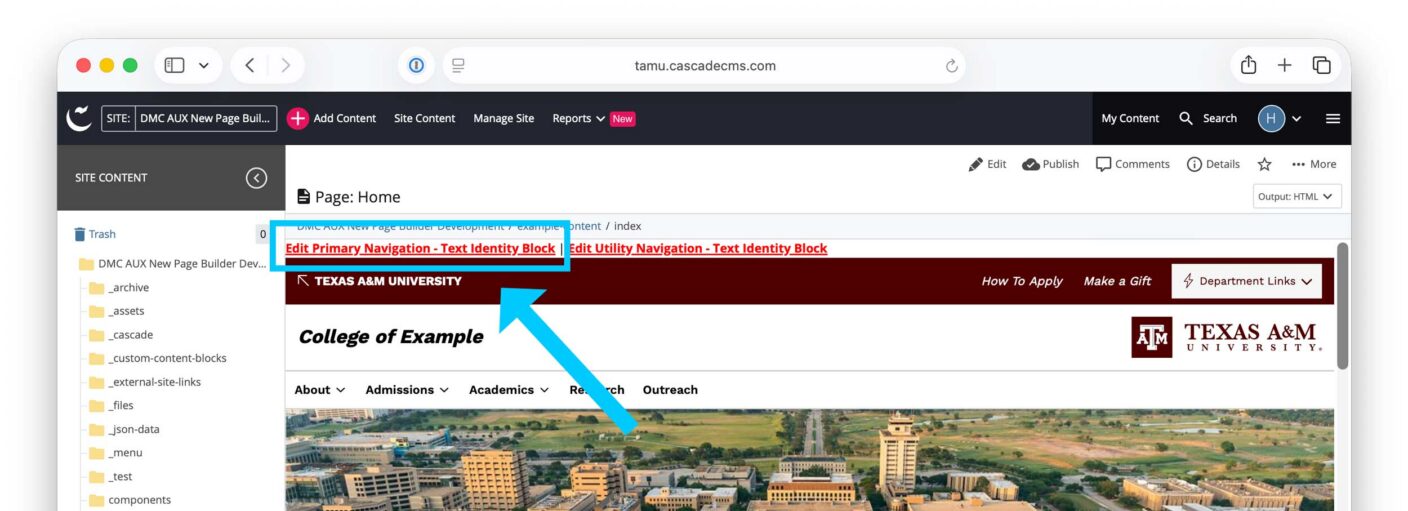
- Open the navigation block currently in use on your site by opening any page in the preview pane and click on the red Edit Primary Navigation link in the top left corner of the preview pane.
- Fill out the content fields as desired
- Click Preview Draft
- Click Submit
- Enter version comments
- Click Submit again
Note: the mega menu functionality automatically adds a heading within the mega menu that matches the menu item that opens the mega menu. This heading is designed to link to a page, but you will have to set that link.
Contact Card Collection B
The Contact Card Collection B offers more robust display options for images and other enhancements than the existing Option A (both will be available).
In Cascade, you have two ways to add content to contact cards:
- Manually enter information, where this information is only displayed in one location, OR
- Link cards to profile pages, automatically displaying information from that profile on the contact card
Video Embed
The video embed component offers a new way to add videos to pages. This component features an embedded video with a heading and description, and optional share icons, CTA, and embeddable transcript.
Enhanced Accordion Groups
Our accordion groups now come with an “expand all / collapse all” functionality. The “slim” style is also available.
All accordions that are in the same group can be opened and closed using this functionality.
Note: you can add multiple accordions to a group by using the plus (+) button.