

How to Edit Content in a Component
Learn how to change properties on Aggie UX components and edit their content.

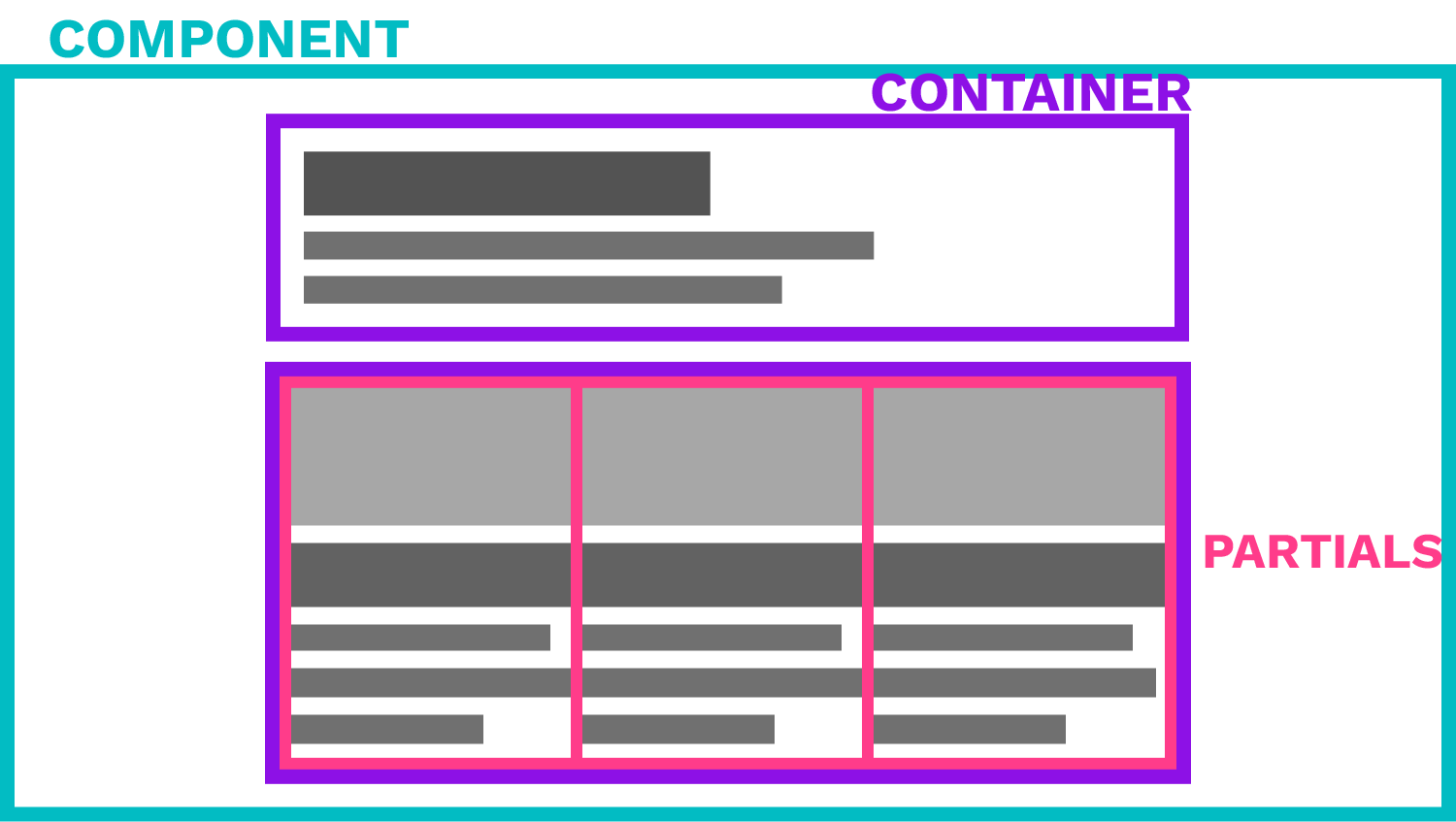
Controls and Component Levels
To optimize this Figma file, most components are comprised of three levels: component, container and partials. This allows us to add consistency and improve performance for Figma file editors. Always refer to the icons in the component controls to see what settings are intended to be used at what level.
Component: Controls backgrounds and layout
Most component-level controls determine background colors and placement or orientation of the component as a whole. The majority of options will be at the container level, so if you are having trouble finding the right controls, you may need to “drill down” a level. Refer to the layers panel for a visual of where you are at in the component.
Container: Controls CTAs and media
The majority of the options will be found at this level, where you can determine style and component-wide CTAs and media. This added layer of controls helps to ensure component-wide consistency and simulate the options available in a CMS. For example, the container level makes it easier to ensure all cards in a card group share the same options.
Partial: Controls additional fields
Multiple partials come together to create a component, and some partials, such as cards, are comprised of smaller partials like heading groups, media, and CTAs. Some controls at this level should not be adjusted, indicated by the 🛑 icon, and should instead be adjusted at the container level. Though, some partials, such as heading groups, allow for the toggling of superheaders and subheaders. Refer to the icons or Storybook documentation for guidance.
Accessing Different Component Levels
Components in the Aggie UX Design System file are often made of several nested Figma components. Building components in this way means that certain controls and properties need to be modified at different parts of the Aggie UX component. We call this “clicking in” or “drilling down” to get to the part of the component you need to modify.
“Clicking In” to Components
One way to access a “subcomponent” is to “click in”, or click repeatedly over the part of the component you wish to modify until that container or partial is selected. This can be a bit tricky, and you can accidentally “click in” too far, and bypass the properties you wanted to modify. If this happens, you will need to click on something outside of the component and try again.
Using the Layers Panel
You can also use the layers panel in the left sidebar to find components and subcomponents. Selecting a layer in the layer panel will open its respective properties in the properties panel.
Understanding Component Controls
Use these icons for guidance on what controls should and should not be adjusted. Most component-level controls can be adjusted, but some controls for partials are for functionality only and should not be adjusted. You can see the component controls in the Design panel in the right sidebar.
✅ Good to adjust
These controls tend to be at the component level and offer multiple options, such as styles and media, to fit your content and design needs.
🛑 Do not adjust
Adjusting these controls may result in unexpected display results or create options not available in a CMS. It is likely a control at a higher level (component or container, for example) determines that property to ensure cohesiveness.
⚠️ Caution when adjusting
In order to save space, some partials are used in different final contexts. This may result in being able to adjust some controls in one context but not another. For example, a featured card in a card group can have its own unique media, but in a card slab, the media option must be the same for both featured cards. Refer to documentation on aggieux.tamu.edu for guidance on what options the component offers in a specific context.
Editing Text Within a Component
The easiest way to edit text within a component is to change to the text tool either by clicking t on your keyboard or selecting the T icon in the floating toolbar at the bottom of your canvas.
Once your text tool is activated, you can click on any piece of text and begin editing it without having to “click in” to access the text layer.
Note: To get out of the text tool, you can either hit escape on your keyboard or select the cursor icon in the floating toolbar at the bottom of your canvas.