

Version History
Learn how to view and restore an asset’s previous version.

Cascade will store the last 19 versions of any asset. This means you can easily revert a page or file back to an earlier version if necessary.
Viewing and Restoring Past Versions
You can view an asset’s version history by selecting More > Versions.
In the version history window, you will see all saved previous versions of the asset.
You can preview a specific version by clicking on the name of a specific version. When viewing a past version, a gray rectangle appears in the top right corner informing you that you are viewing a version from a past date.
Additionally, from the version history window, you can use the check box next to a specific version to perform one of the following actions:
- Restore Version: This will revert the asset to the selected version. All changes made in versions more recent than the selected version will be lost.
- Compare with Current: This allows you to compare the current version with the selected version to see differences between them.
- Delete: This allows you to delete that version of the asset. Please do not delete versions.
Best Practices for Version Comments
When creating or making changes to assets, it is important to leave meaningful comments on each version. This will:
- Help your future self find a specific version of an asset
- Help approvers know what changes have been made to an asset before approving them to publish
- Adds accountability to the website editing process
In your comments, describe the changes you made and why.
Examples:
“Updated broken links.”
“Made content changes requested by Sarah Sweatt, Director of Web Development, on 3/15/26.”
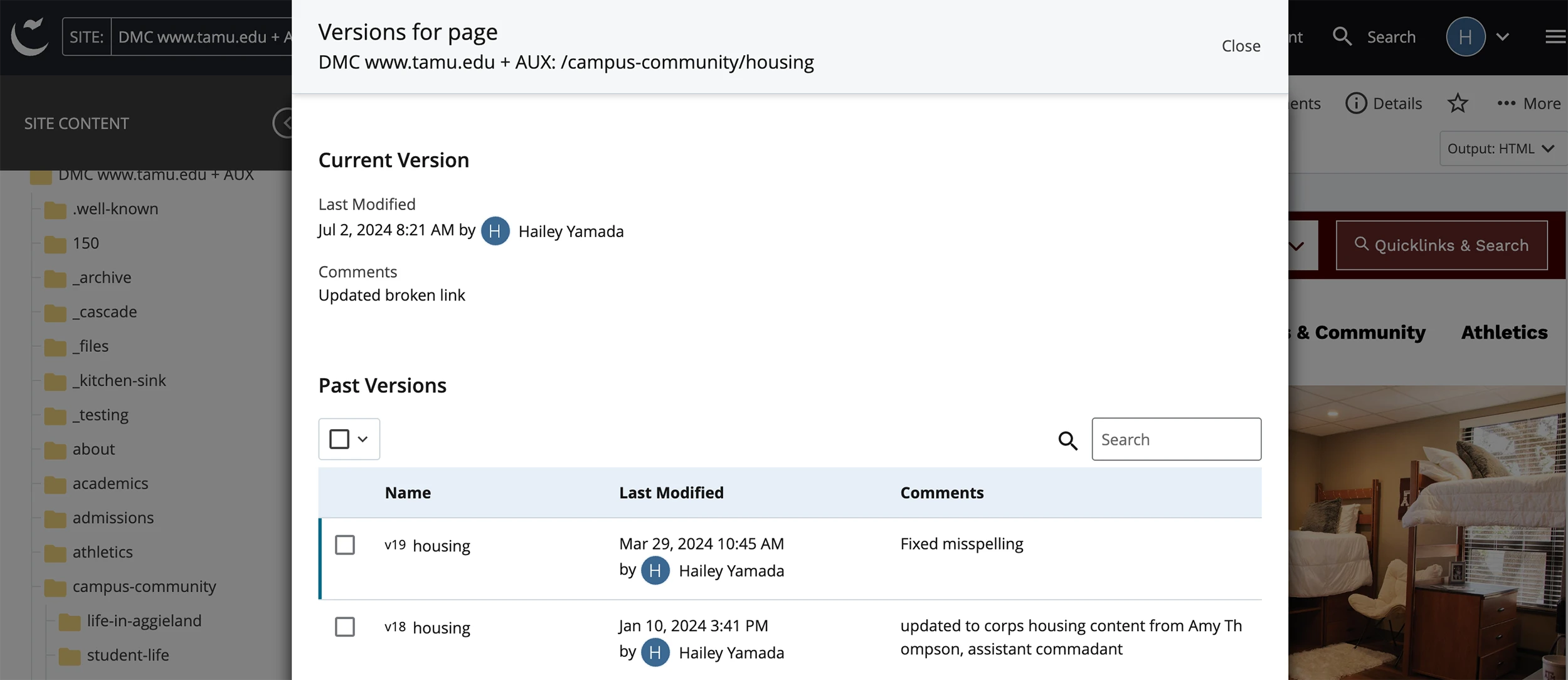
Version history for a page on www.tamu.edu.