

File Names Explained
Learn the difference between file names, display names, titles and alternative display names.

In Cascade, there are several different places you can name your file. Each of these fields are output in different places on your site and in search engines.
Different File Names
Page Name
The page name will be part of the final URL and must meet the following requirements: lowercase only, no spaces (use hyphens to separate words), and no leading or trailing spaces. If you enter a name that doesn’t follow these naming conventions, you will see a prompt to “use suggested name.” Click this option to quickly correct issues related to special characters and character cases.
For home pages and landing pages in Cascade, you will need to use the page name “index”.
Learn more about index pages in Cascade
To change the page name in Cascade, you will need to use the rename action.
File Name
The file name serves the same purpose as the page name for other asset types. It will be used in the URL and must meet the following requirements: lowercase only, no spaces (use hyphens to separate words), and no leading or trailing spaces. If you enter a name that doesn’t follow these naming conventions, you will see a prompt to “use suggested name.” Click this option to quickly correct issues related to special characters and character cases.
This is also what you will see in the site content sidebar.
To change the file name in Cascade, you will need to use the rename action.
Display Name
On pages, the display name is the H1 heading displayed at the top of the page.
To change the display name, you can use the edit action.
Title
The page title is displayed in search engine results and on browser tabs. The title should be 60 characters or fewer and describe the page using terms your target audience may search for. Your title can match your display name, but it doesn’t have to.
To change the title, you can use the edit action.
Alternative Display Name for Menus
The alternative display name is optional, but gives you a way to enter a shorter name for use in sidebar menus and breadcrumbs. This can be helpful when the display name for a page is very long.
To change the alternative display name, you can use the edit action.
Example Ways to Use Each Type of Name
Page Name: index
Display Name: How to Apply to Texas A&M
Title: How to Apply to Texas A&M University
Alternative Display Name: How to Apply
Cascade Tip
You can configure your Cascade settings to show either the display name or file name in the site content sidebar. We recommend showing the file names so you can easily see if a folder is missing an index file.
To change between viewing the display name or file name:
- In the upper right corner, click the dropdown arrow next to your circular profile image
- Click Settings
- Under “Appearance of Asset Links”, check or uncheck the checkbox to change what you see in the site content sidebar
- When checked, you will see the asset’s title or display name when available
- When unchecked, you will see the asset’s file name
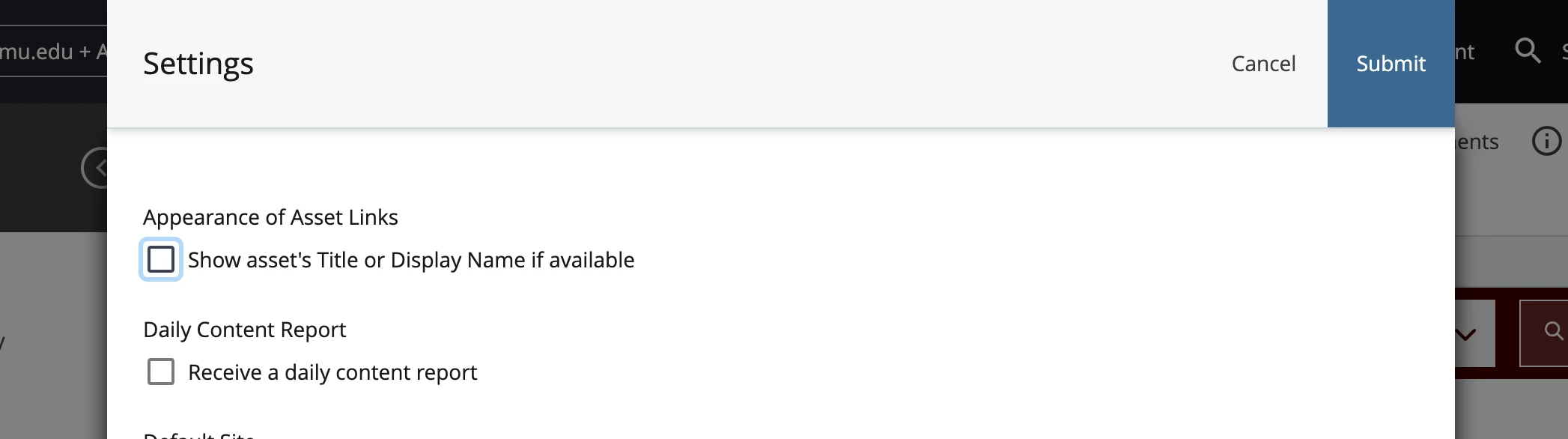
We recommend setting the appearance of asset links to NOT show the asset’s title or display name if available.