

Internal Links vs. External Links
Learn the difference between the two link types and when to use each.

In order to take advantage of relationships, you need to connect assets through internal links.
Internal links
Links to assets inside of your Cascade site. These are “smart” links, and will update if the asset you’re linking to gets moved or renamed.
Internal links are made by clicking the Choose File, Page, or Link button available in many components. This will open a panel on the right side of your screen where you can quickly select recent assets or navigate through Cascade to find a specific asset.
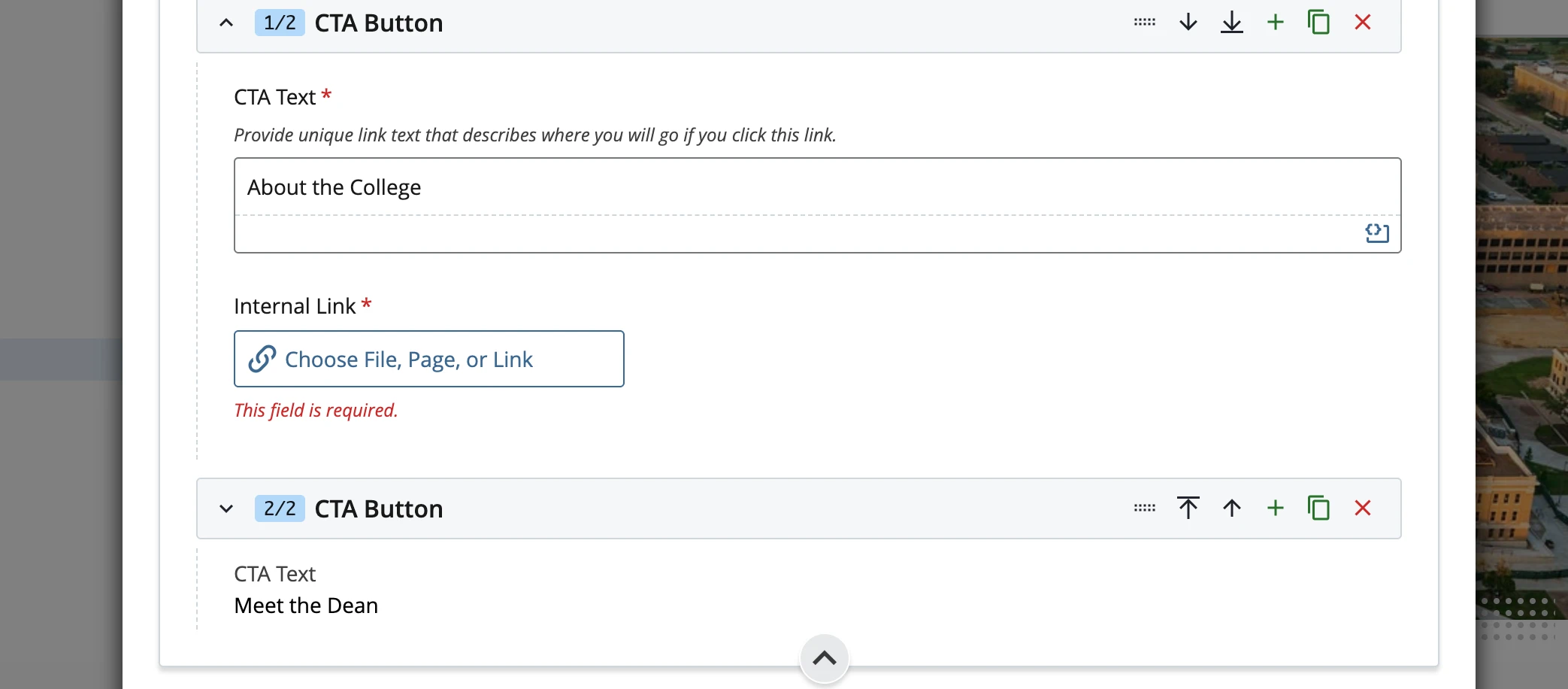
The internal link selector button is available in many components, and lets you choose a file, page or link asset to link to.
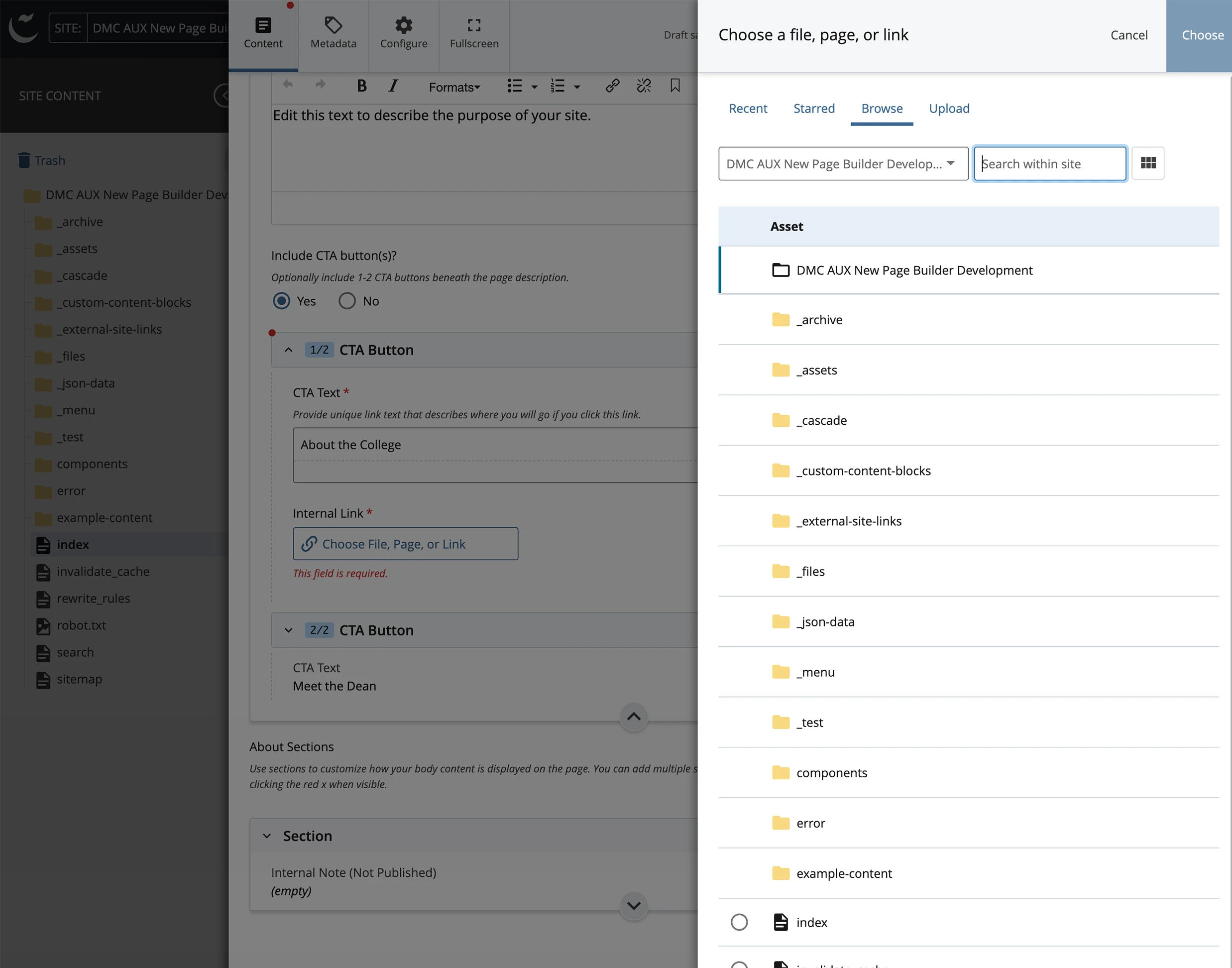
The internal link selector panel opens on the right-hand side. You can easily view recent or starred assets, or choose to browse your site to find the internal asset you want to link to.
External links
Links to other things that are not in your Cascade site, such as other website’s URLs or to email addresses (as mailto:example@tamu.edu). External links are NOT smart — if something you link to gets moved or renamed, it will result in a broken link.
For many Aggie UX components, we don’t allow linking to external links directly. If you need to link to something outside of your Cascade instance in one of these components, you’ll need to create an external link asset.