

About Site Headers and Navigation
Learn about site headers and navigation which display at the top of every page of a website.

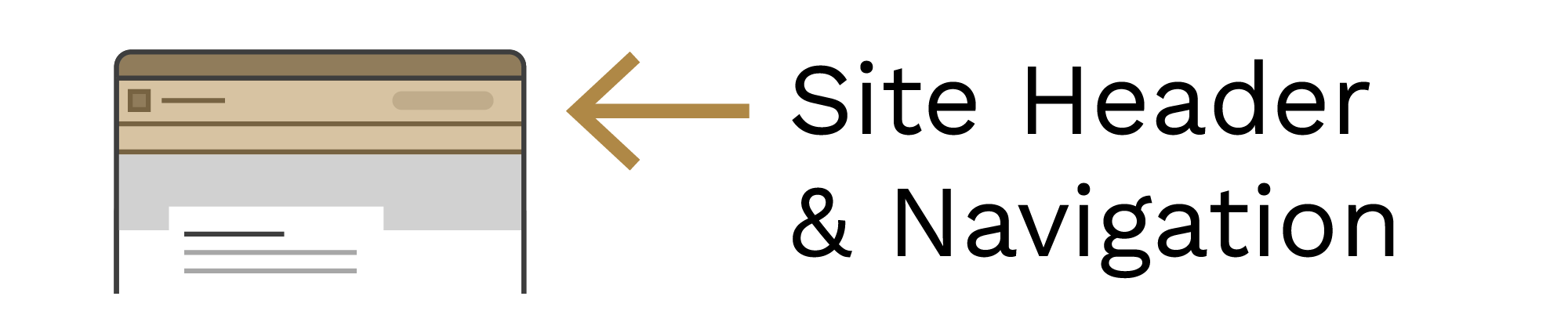
The site identity is the name of a website and is typically the top-left-most link on a web page. This, combined with a search bar and navigation links in the utility and primary navs, appears at the top of every page on a website and create the site header.
Aggie UX provides different arrangements for site identities, navigation links and search based on answers to the following:
- Is the site’s name the same as a Texas A&M unit with an approved unit identity?
- Is the website sponsored by more than one Texas A&M unit?
- What type of unit owns this site?
The answers to these questions will determine whether your site should use a site header with a lockup identity or a site header with a text identity.
Site Header & Navigation Variations
There are four main variations of site headers based on a combination of site header layout and navigation functionality:
- Dropdown Menu with Lockup Identity
- Dropdown Menu with Text Identity
- Mega Nav Menu with Lockup Identity
- Mega Nav Menu with Text Identity
Logos as Site Identities
Texas A&M Division of Marketing and Communications maintains usage guidelines for all Texas A&M University logos. Aggie UX is designed to work within these guidelines.
Only official Texas A&M units with an approved Texas A&M Unit Identity can use the Texas A&M TAM logo box as part of their site name as seen in the “lock up identity” site header layout. All other sites must use the “text identity” site header layout, where the site name is typed out, along with an official Texas A&M unit identity or the official Texas A&M University logo.
Sites should default to using a Texas A&M unit identity over the Texas A&M University logo unless the site is for a university level initiative or managed by multiple Texas A&M units.
Learn more about Texas A&M Logos
Navigation Functionality
The primary navigation lies below the site identity and unit logo. We recommend not having more than 6-8 navigation items in the primary nav.
On mobile, all options in the primary navigation will be accessible behind the “menu” button.
Aggie UX navigation can either function as a dropdown menu or a mega menu. This functionality is available for all site header layouts.
Dropdown Menu
When clicking on a navigation item using the dropdown menu functionality, a simple list of links will appear beneath the navigation item. Nav items can be dropdowns or buttons that go directly to a page.
Note: You will need to make a link to landing/index pages.
Mobile Behavior
On mobile devices, the primary navigation is accessed using the Menu button located at the bottom of the screen.
When the Menu is opened, all primary navigation items are displayed in a vertical list.
Navigation items may behave in one of two ways:
- Direct links that take users to a page. This behavior applies to CTA links from the utility navigation and any navigation items using the “button” functionality.
- Expandable items that reveal a list of links when tapped. Expandable menu items can be opened and closed to show or hide their child links, allowing users to browse without leaving the menu.
Additional navigation elements found in the utility navigation are also included in the mobile menu for easy access:
- Call-to-action (CTA) links
- Quicklinks
- Persona-based navigation items
Mega Menu
When clicking on a navigation item using the mega menu functionality, a mega menu will appear beneath the navigation item that includes the name of the menu item linked to, up to two action buttons, and a list of navigation links. Nav items can be mega menus or buttons that go directly to a page.
Mobile Behavior
On mobile devices, the primary navigation is accessed using the Menu button located at the bottom of the screen.
When the Menu is opened, all primary navigation items are displayed in a vertical list.
Navigation items may behave in one of two ways:
- Direct links that take users to a page. This behavior applies to CTA links from the utility navigation and any navigation items using the “button” functionality.
- Links that reveal a panel of links when tapped. Each panel has the same content and links that are visible in a mega menu on desktop-sized screens. You can use a back button at the top left to go back to the main menu list of primary navigation items.
Additional navigation elements found in the utility navigation are also included in the mobile menu for easy access:
- Call-to-action (CTA) links
- Quicklinks
- Persona-based navigation items
Keep Learning
Learn about Site Headers with Lockup Identities in Aggie UX 101 Module 7 Chapter 3.