

Wayfinding
Discover how navigation components help a user know where they are and where they can go on a website.

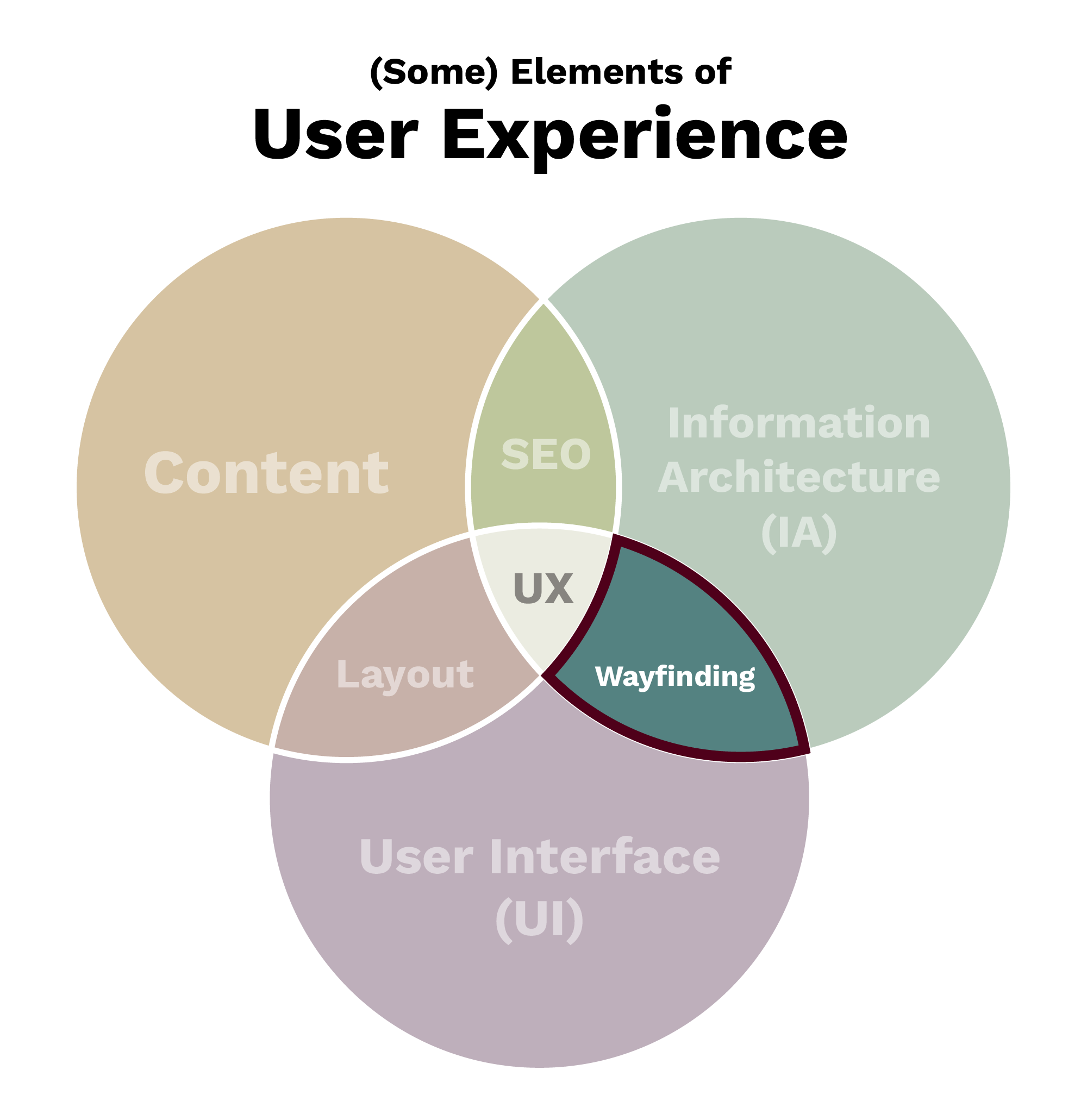
Fundamentally, wayfinding is about providing ways for users to know where they are and where they can go.
Navigation Components Enable Wayfinding
A website’s navigation is a collection of user interface (UI) components. The primary goal of navigation is to help users find information and functionality, and encourage them to take desirable actions; in other words, to see where they are and where they can go.
Aggie UX Navigation Components
Aggie UX offers multiple navigation options, including:
- Utility navigation
- Sitewide search
- Primary navigation (part of the site header)
- Breadcrumbs
- Sidebar menu (a type of local navigation)
- Footers and subfooters
Creating Effective Website Navigation
Ideally, deciding what goes in your site’s navigation should be done hand-in-hand with deciding your site’s information architecture.
Limit Navigation Links
In order to avoid overloading a user with choice paralysis, you should limit your navigation items to a manageable number. Typically three to seven navigation options are recommended.
In Aggie UX, we have provided a primary navigation in the site header that can accommodate up to eight navigation items fairly well. We also have additional room for navigation items in the utility navigation. We recommend using the primary navigation for important top-level pages and the utility navigation for linking to important calls to action and resources.
Group Pages Intuitively
A practical way to limit how many links are in your primary navigation is to group content into “buckets.” These buckets allow you to use landing pages to show how different pages of content are related.
Importantly, page groupings need to be intuitive to your target audience — not your stakeholders. This typically boils down to not letting your org chart dictate your information architecture and navigation items. Your site visitors should not have to understand the bureaucracy of Texas A&M to be able to find the content they are looking for.
Link to Top-Level Pages
While not all top-level pages need to be in your navigation, it is common practice for items linked in your primary navigation to be top-level pages. For example, your “Error” page is a top-level page, but you would NOT include that in your navigation.
Linking to deep pages in your site in your primary navigation may confuse or disorient a user. Instead, think of your primary navigation as a place to link to landing pages throughout your site that then provide further navigation opportunities to deeper pages. include that in your navigation.
Linking to deep pages in your site in your primary navigation may confuse or disorient a user. Instead, think of your primary navigation as a place to link to landing pages throughout your site that then provide further navigation opportunities to deeper pages.
Link to Valuable Calls to Action
It can be helpful to add your most important calls to action — such as “How to Apply,” “Visit Texas A&M” or “Make a Gift” — in your navigation. In Aggie UX, we recommend using the utility navigation as a way to make these calls to action visible on every page of your site while not cluttering your main navigation.
Write Short Navigation Labels
Navigation labels need to be concise and logical. Due to space constraints, you want these labels to be as short as possible while still making sense. Additionally, you want to make sure navigation labels are using the same (or similar) language as used on page’s H1 headings to increase a user’s confidence in knowing where they are in a site.
Additional Resources
Here are a few additional resources from Nielsen Norman Group to help you when designing your information architecture and navigation: